Talk to AI on your computer
Use an AI app that has a voice mode, let it use the microphone, and speak. On Windows, microphone access is under Settings > Privacy & security > Microphone; on a Mac, under System Settings > Privacy & Security > Microphone. A headset or a quiet room makes the biggest difference to how well it hears you. Ace, for example, listens while you hold Ctrl + Shift on Windows or Command + Shift on a Mac, then answers out loud.

Free Play: 2,000 credits, no card. Ace by Black Label.

Ways to talk to AI on a computer
- A desktop app with a voice mode. Claude’s voice mode works in Claude Desktop on every plan; Microsoft says Copilot Voice availability depends on your subscription and region.
- A website in your browser. The browser asks once for microphone permission; Claude’s voice mode also works on the web.
- Dictation into a text box. Gemini’s Mac app lets you hold the Fn key to dictate into the active window. That turns speech into text; it is not a conversation.
- A push-to-talk assistant such as Ace, which you call up over any app with a hotkey and which answers out loud.
Ace’s makers wrote this guide; the other apps are described the way their own help pages explain them on October 28, 2026.
Step 1: allow the microphone
Windows 11 and Windows 10
- Open Settings > Privacy & security > Microphone.
- Turn on Microphone access and Let apps access your microphone.
- Desktop apps are not listed one by one; turn on Let desktop apps access your microphone for them.
- While an app is using the microphone, a microphone icon appears in the notification area of the taskbar.
Mac
- Choose Apple menu > System Settings, then click Privacy & Security.
- Click Microphone and turn access on for the app you want to talk to.
- The recording indicator in Control Center shows when the microphone is in use or was used recently.
In a browser
The site asks the first time. If you clicked Block, open the site settings from the address bar and allow the microphone for that site, then reload the page.
Step 2: pick the right input
Computers often have several microphones: the built-in one, a webcam, a headset. In your sound settings, choose the one you mean to use, then watch the input level move while you speak. A headset microphone is the most reliable choice in shared rooms, because it sits close to your mouth and keeps the AI’s own voice out of the microphone. In a quiet room, a laptop’s built-in microphone is fine.
Step 3: talk, then follow up
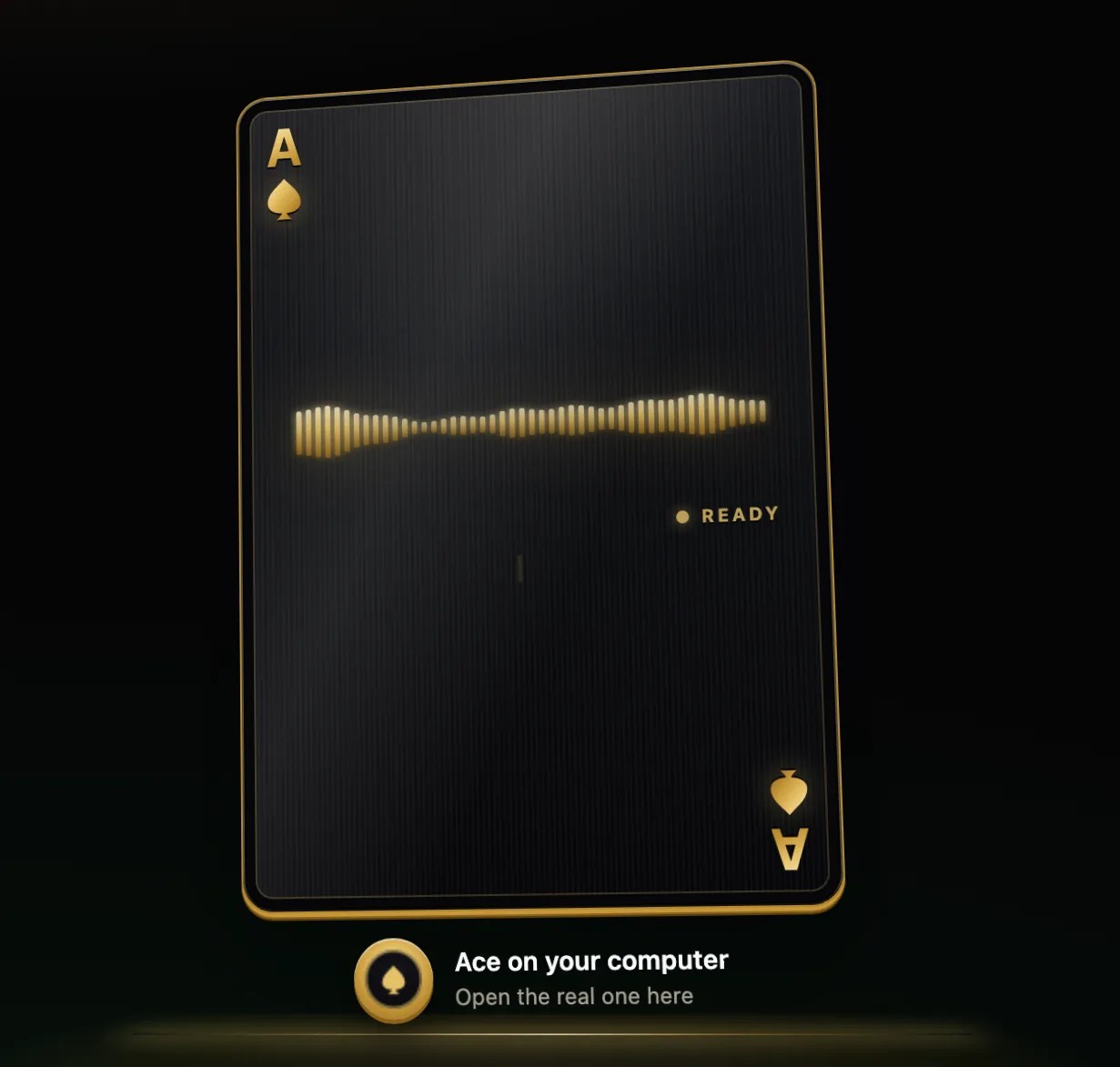
Start the voice mode, say what you need in one or two sentences, and pause. Then steer with short follow-ups instead of starting over. With Ace you hold Ctrl + Shift on Windows or Command + Shift on a Mac while you speak and let go when you finish; the Linux AppImage uses a hotkey you choose. Ace answers in its own voice, and you can type instead whenever that is easier. Ask “what does this error mean?” and Ace can look at your screen, but only when you ask, after you have allowed screen access.
When the AI cannot hear you
| Symptom | Likely cause | Fix |
|---|---|---|
| Nothing happens when you talk | Microphone access is off for the app | Turn it on in privacy settings, then restart the app |
| It hears the wrong words | Wrong input device, or a noisy room | Choose the headset as input; move away from fans |
| It cuts you off mid-sentence | A hands-free mode took your pause as the end of your turn | Pause less or switch to push-to-talk, as Claude’s guide suggests |
| It answers itself | Speakers feeding back into the microphone | Use headphones |
| Replies stutter or stop | An unstable internet connection | Voice AI runs online; check your connection |
Computer or phone?
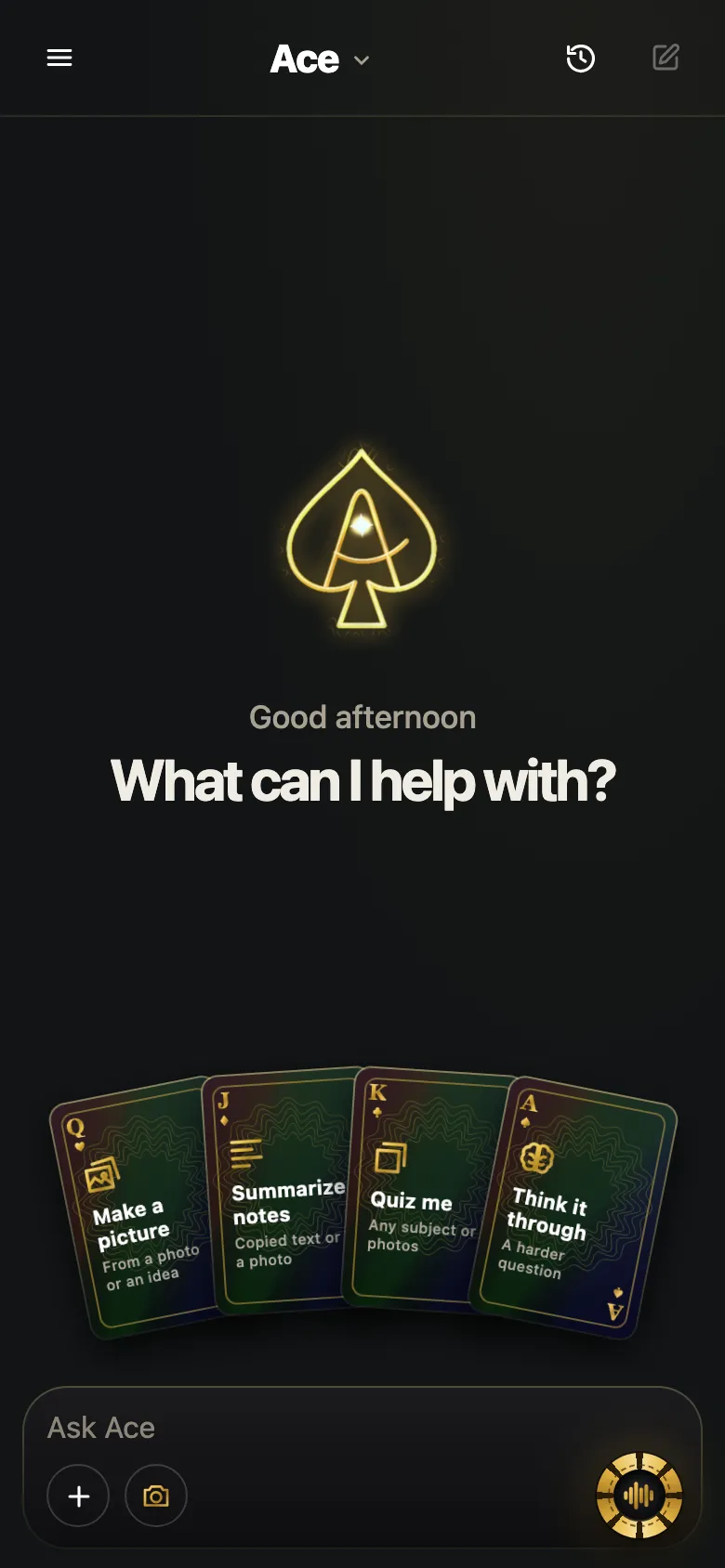
Talk to AI on the computer when the conversation is about what is on the screen, when you are mixing voice with typing, or when you are working for a long stretch. Use the phone when you are away from the desk or want to show it something with the camera. If you use both, pick an assistant that keeps one account across them, so your history and any paid plan follow you.
More from Ace
The full overview of talking to Ace is on tryacee.com/talk-to-ai.
Also asked
Do I need an external microphone?
No. A laptop’s built-in microphone works in a quiet room; a headset helps in noisy places and keeps the AI’s voice out of the microphone.
Can I talk to AI on a Linux computer?
Yes, through browser-based voice modes, or with Ace’s Linux AppImage, which uses a hotkey you choose.
Why is my AI app missing from the Windows microphone list?
Desktop apps are controlled together by Let desktop apps access your microphone, rather than one by one. Store apps have their own switches.
Can it see my screen while we talk?
Some assistants can, with your permission: Gemini’s Mac app can share a window, and screen-aware assistants generally ask for screen access in your system settings first. You can withdraw that permission at any time.
Do I need the internet to talk to AI?
Usually. The models that hold a conversation run in the cloud, so the assistant needs a connection to answer, even when the app is installed on your computer.
How do I let an AI app use my microphone on Windows?
Open Settings > Privacy & security > Microphone, then turn on Microphone access and Let apps access your microphone. Desktop apps are not listed one by one, so also turn on Let desktop apps access your microphone. While an app is using the microphone, a microphone icon appears in the notification area of the taskbar.
How do I give an AI app microphone access on a Mac?
Choose Apple menu > System Settings, then click Privacy & Security. Click Microphone and turn access on for the app you want to talk to. After that, the recording indicator in Control Center shows when the microphone is in use or was used recently.
How do I unblock the microphone for a voice AI website?
Open the site settings from the address bar, allow the microphone for that site, then reload the page. That fixes it if you clicked Block the first time the site asked. The browser asks once for microphone permission, and Claude’s voice mode is one that also works on the web.
Why does the AI hear the wrong words when I talk to my computer?
The likely cause is the wrong input device or a noisy room. Computers often have several microphones: the built-in one, a webcam, a headset. In your sound settings, choose the one you mean to use, then watch the input level move while you speak. Choose the headset as input and move away from fans.
Why does the AI answer itself when I use my computer speakers?
Your speakers are feeding back into the microphone, so it picks up the AI’s own voice. Use headphones. A headset microphone is a reliable choice in shared rooms, because it sits close to your mouth and keeps the AI’s own voice out of the microphone.
Should I talk to AI on my computer or on my phone?
Use the computer when the conversation is about what is on the screen, when you are mixing voice with typing, or when you are working for a long stretch. Use the phone when you are away from the desk or want to show it something with the camera. If you use both, pick an assistant that keeps one account across them.
How do I set up Ace so I can talk to it at my desk?
Create a free account or sign in, choose the download for your computer, then finish Setup and choose what Ace can access. Approve the microphone prompt once. After that, hold Command + Shift on Mac or Ctrl + Shift on Windows, say one request, hear the answer, then say what to change.
More questions
Deal yourself in.
More about Ace
Sources
- Windows camera, microphone, and privacy | Microsoft Support, Microsoft Support. Checked November 14, 2026.
- Control access to the microphone on Mac - Apple Support, Apple Support. Checked November 14, 2026.